
Installation
Learn how to install and set up Novadesk on your Windows system. This guide walks you through installing Novadesk on Windows.
Table of Contents
System Requirements
- Windows 7 or later (Windows 10/11 recommended, 64-bit)
- At least 20 MB of free disk space
Novadesk Installation Guide
Step 1: Download the Installer
Visit the official website at https://novadesk.pages.dev/ and download the latest installer for Windows.
Step 2: Run the Setup
Locate the downloaded installer (e.g. Novadesk_Setup_vX.X.X.X_Beta.exe) in your Downloads folder and double-click it to start the setup wizard.
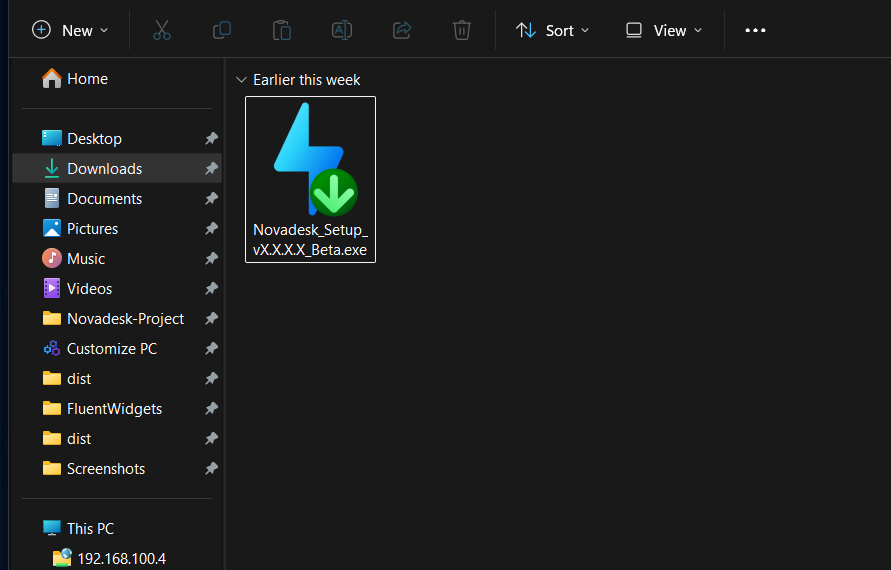
User Account Control (UAC)
The installer starts with standard user permissions. If you select Standard installation, administrator privileges are requested seamlessly when you click Install, displaying the Windows UAC shield on the button.
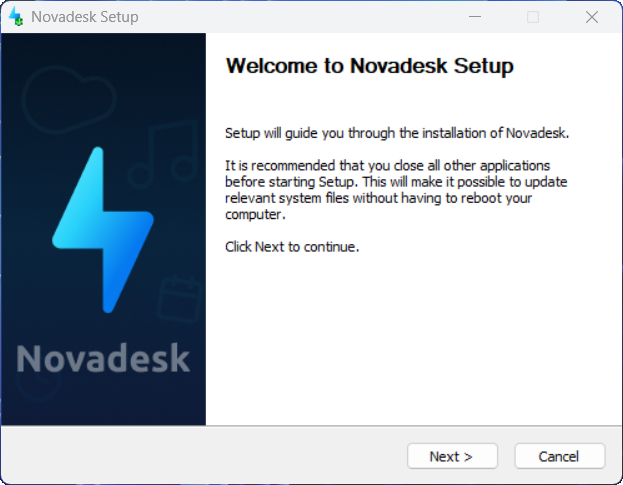
Step 3: Welcome Screen
The welcome page introduces the setup process. It is recommended to close any active applications before continuing so that relevant files can be updated smoothly without requiring a system restart.
- Click Next > to continue.
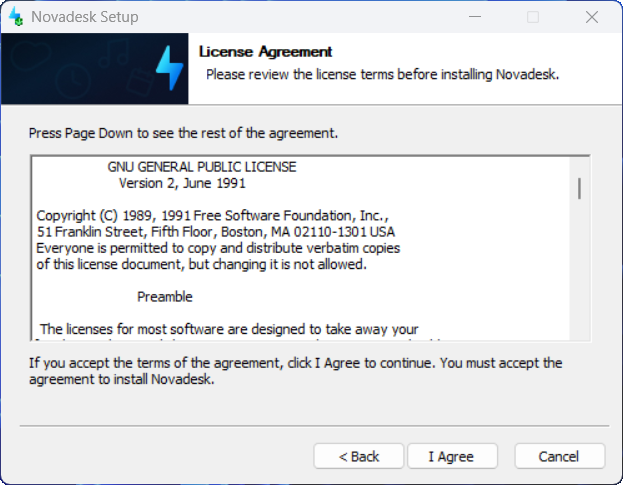
Step 4: License Agreement
Review the GNU General Public License terms before proceeding with the installation.
- Click I Agree to accept the license terms and proceed.
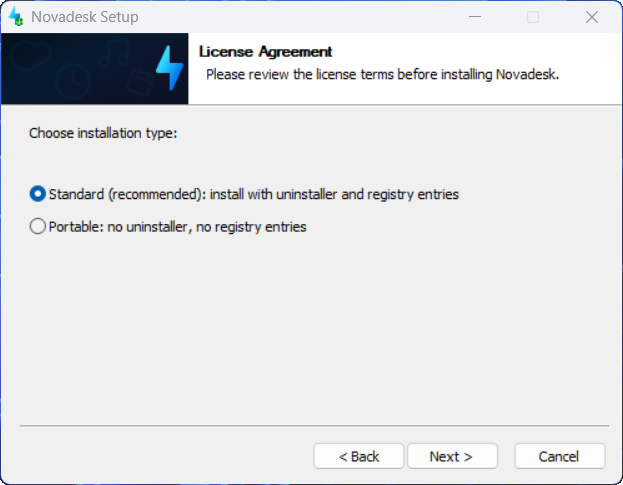
Step 5: Choose Installation Type
Choose the installation mode that best fits your workflow:
- Standard (recommended): Installs Novadesk to your system with full integration:
- Creates an uninstaller in Windows Settings > Installed apps / Control Panel.
- Installs core executables (
novadesk.exe,manage_novadesk.exe,ndpkg_installer.exe, andnwm.exe) toProgram Files. - Adds Novadesk and
nwmto your systemPATHfor command-line access. - Creates Start Menu and Desktop shortcuts.
- Registers the
.ndpkgwidget package file association. - Stores user widgets and addons in
Documents\Novadesk\and user settings inAppData\Roaming\Novadesk\.
- Portable: Installs a self-contained copy without writing to system registry keys, shortcuts, or system directories:
- Widgets, addons, and
manage_novadesk_settings.jsonare placed directly alongside the executables. - Ideal for running from flash drives or custom local directories.
- Note: Portable mode cannot be installed into system-protected folders (such as
Program FilesorWindows).
- Widgets, addons, and
Select your preferred option and click Next >.
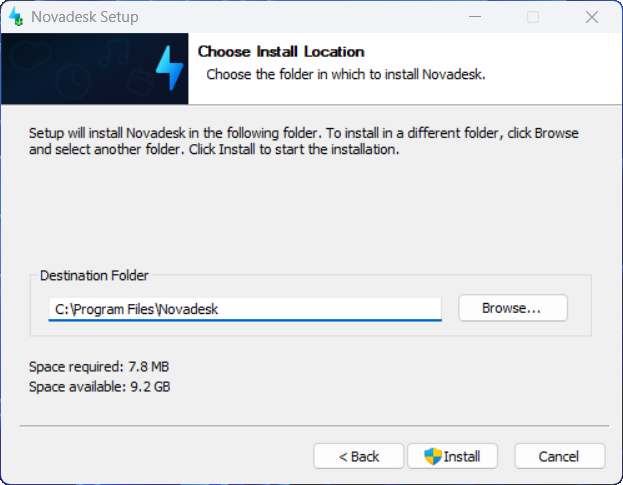
Step 6: Choose Install Location
Select the destination directory where Novadesk files will be placed:
- Default Location (Standard):
C:\Program Files\Novadesk\ - Default Location (Portable): Current installer folder
- Click Browse... if you want to select a custom destination folder.
- Click Install (or the shielded button in Standard mode) to begin copying files.
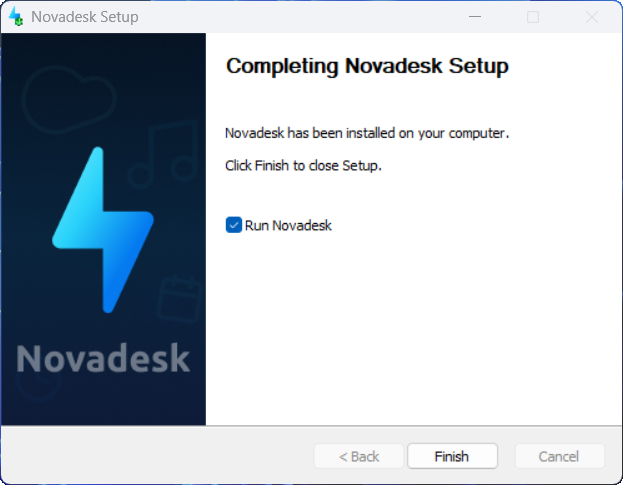
Step 7: Complete Installation
When the setup finishes copying all required files and configuring system shortcuts:
- Keep Run Novadesk checked if you want Novadesk to launch immediately.
- Click Finish to complete setup and close the wizard.
Uninstallation
If you ever need to remove Novadesk:
- Open Windows Settings > Apps > Installed apps (or Control Panel > Programs and Features).
- Find Novadesk and click Uninstall.
- During uninstallation, you can choose whether to perform a complete cleanup:
- Completely Remove Novadesk: When checked, cleans up all user files in
Documents\NovadeskandAppData\Novadeskin addition to program files.
- Completely Remove Novadesk: When checked, cleans up all user files in
Related Pages
- Getting Started — overview and key concepts
- Creating Your First Widget — build your first widget after installing
- CLI Commands — command-line reference for nwm